
What TrustHours sees.

Your company uses TrustHours to track work time. This page explains, in plain words, what it can see on your computer, what it never sees, and what you control. It is written for the person being tracked.

See what it never seesStart free for your team
Updated October 2026 · Applies to the Windows app

The short answer

Only while you track.
Nothing is recorded while you are paused, on a break, or the app is closed. Pausing takes one click from the tray icon.
A screenshot at a random moment.
One per interval your company sets, never on a predictable beat, with passwords masked.
Counts, not content.
Keyboard and mouse activity is counted. What you type is never recorded.

What it sees, and what it never sees

Your company chooses the plan and the settings, so ask your manager which of these are switched on. Whatever they choose, you can always see your own data.

Sees, while you are tracking
Your tracked time, and the project or task you picked
Screenshots at a random moment in each interval your company sets (every 2, 5 or 10 minutes)
Which applications were active
Keyboard and mouse activity level, as counts only
App and website usage, on the Business plan
A live view of your screen, on the Business plan, when a manager opens it. Live view stores nothing
Screen recording, on the Business plan, only if your company turns on that separate switch
Never sees
Anything while you are paused, on a break, or the app is closed
Screenshots during lunch and tea breaks
Screenshots while banking, password or chat apps are in focus
Your passwords: they are masked in every screenshot
What you type
Apps your company lists as restricted: they are skipped or blurred

A tracked day, hour by hour

Capture follows your timer. Here is how one ordinary day looks from the inside.

One tracked day, 9am to 5:30pm= one screenshot
9am10am11am12pm1pm2pm3pm4pm5pm
9:00 to 12:30
Tracking. A screenshot lands at a random moment inside each 10-minute window.
12:30 to 1:15
Lunch break. Nothing is captured until you tap back in.
3:10
Five quiet minutes. The timer pauses itself, and idle time is never billed.
3:15 to 3:40
Paused from the tray icon. Nothing is captured, and your manager sees that you paused.
3:40 to 5:30
Tracking again. Screenshots resume, still at random moments.
Illustration of how capture works on a Team plan with 10-minute screenshots. Not real data.

What you control

A system people can step out of is one they will accept. That is why the controls sit with you, not hidden in an admin panel.
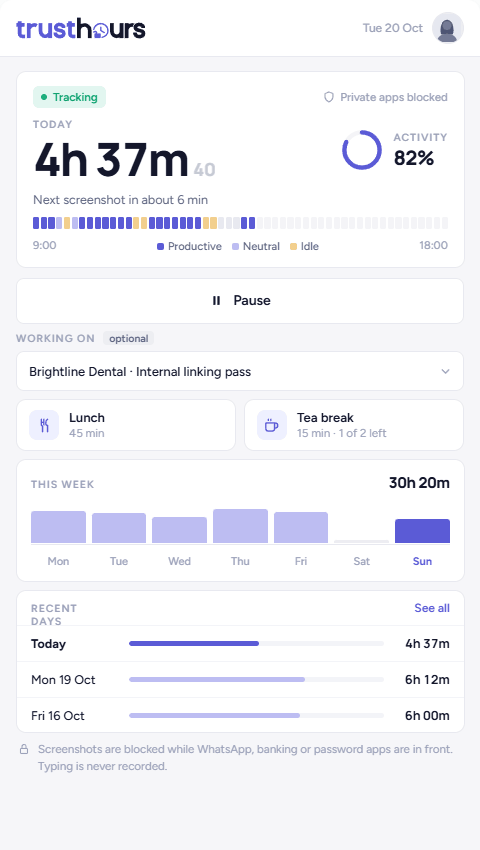
Permission is asked before tracking starts
Pause or take a break from the tray icon at any time
Lunch and tea breaks are paid and off the record
After 5 quiet minutes the timer stops on its own, and idle time is never billed
Your own screenshots, hours and activity, in your own app
The TrustHours desktop app showing the pause button, breaks and today's hours

Why we explain this to employees

Monitoring is common. Being told about it is not.

74%
of US employers use online monitoring tools, while about half of workers suspect monitoring they were never told about.
6 in 10
US workers say they have little or no say in how tracking data about them is used.

We publish this page so the people being tracked never have to guess. If your employer uses TrustHours, everything above applies to you.

For managers: introduce TrustHours to your team

Telling people first is the difference between a tool your team accepts and one they resent. Four steps, then a message you can send today.

01
Tell the team before installing
Share this page and explain why you are tracking time: billing clients, paying hourly staff, or seeing workload.
02
Agree the settings together
Screenshot interval, blur, and which apps should always be skipped. Fewer surprises means fewer objections.
03
Give written notice where the law asks
New York, Connecticut, Delaware and Maine require notice of electronic monitoring, and UK guidance expects openness. See our trust page for a summary.
04
Review after two weeks
Ask what feels like too much and adjust. Settings change in one place for the whole team.
Message to send your team
Hi team,

From [start date] we are using TrustHours to track work hours. Before anything is installed, here is exactly what it can and cannot see: https://trusthours.com/what-trusthours-sees/

In short: it only records while your timer is running. It takes one screenshot at a random moment every [10] minutes, with passwords masked. It counts keyboard and mouse activity, but never what you type. Lunch and tea breaks are off the record, and you can pause from the tray icon at any time. You can see your own screenshots and hours in your own app.

We will review the settings together after two weeks. If anything feels like too much, tell me directly.

[Your name]

Questions employees ask

Can my employer see my screen with TrustHours?+

Only while your timer is running. TrustHours takes a screenshot at a random moment in each interval your company sets. On the Business plan a manager can also open a live view, which stores nothing, and screen recording is a separate switch your company would have to turn on. While you are paused, on a break or the app is closed, nothing is captured.

Can my employer see what I type?+

No. TrustHours counts keyboard and mouse activity, so your manager sees an activity level, not words. It cannot see what anyone types, and passwords are masked in every screenshot.

Can my employer see which websites I visit?+

On the Business plan, app and website usage is recorded while you are tracking. Nothing is recorded while you are paused or on a break, and screenshots skip banking, password and chat apps when they are in focus.

Does TrustHours track me when I am not working?+

No. It only records while the app is running and tracking is on. Pausing, taking a break or closing the app stops all capture. Your manager can see that you paused, so stepping away is visible, not hidden.

I work for two clients on one laptop. Will TrustHours see the other client's work?+

Only if your timer is running while you do it. Pause or stop tracking before you switch to the other client, and nothing is captured. If the other work uses different apps, your company can also list those apps as restricted so they are skipped or blurred.

Can I see my own screenshots?+

Yes. Everyone has their own view of their day, their screenshots, their hours and their activity in the TrustHours app, so you see exactly what your manager sees about you.

Is it legal for my employer to monitor me?+

It depends on where you work. In the US, New York, Connecticut, Delaware and Maine have laws requiring employers to give notice of electronic monitoring. In the UK, the ICO's guidance expects employers to be open about monitoring. This is general information, not legal advice; ask your HR team or a lawyer about your situation.

Want a tracker your team will not resent?

14 days free. No card needed.

Read the trust pageStart free for 14 days